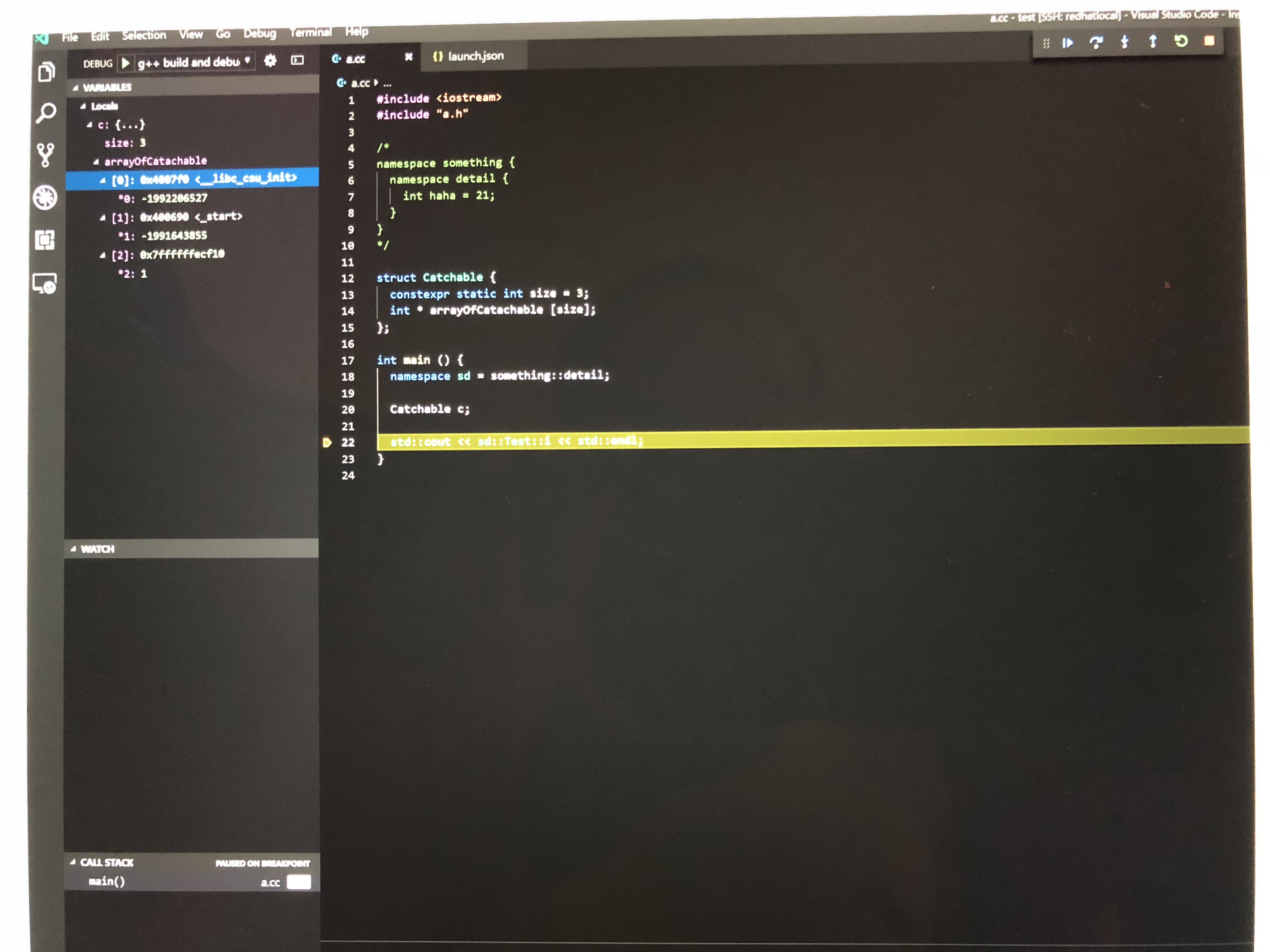
Visual Studio Code Remote Debug (C++) Quick Guide
I will try my best to make this guide as concise as possible at the same time I also make sure if you follow these steps you should be able to successfully remotely debug your c++ code.

Step 1, Follow previous post to setup the environment
This also includes installing VS Code Insider version as a prerequisite. (you have to wait until sometime in June to use the official version which has this remote support). You can find all my blogs on github (so far only 2) at the end of the article.
Step 2, Connect to the remote linux box
Open VS Code (Insider version) and connect to the linux box. Normally this takes a few minutes maybe and patiently wait for it sets up everything because VS Code need to install a bunch of stuff for each connection.
Then make sure you reinstall the plugin named C/C++ from Microsoft which has IntelliSense, debugging, and code browsing supports.
Step 3, Open a remote source code folder
After the files are shown for that folder, you can click on Debug from the top menu in VS Code. If this is the first time you debug, it will prompt you that you need to setup the launch.json file. You can choose the g++ build and debug active file template and start editing. The good thing is that the template has most of the stuff correct already. I list my setting just for your reference,
{
    "version": "0.2.0",
    "configurations": [
        {
            "name": "g++ build and debug active file",
            "type": "cppdbg",
            "request": "launch",
            "program": "${fileDirname}/${fileBasenameNoExtension}",
            "args": [],
            "stopAtEntry": false,
            "cwd": "${workspaceFolder}",
            "environment": [],
            "externalConsole": false,
            "MIMode": "gdb",
            "setupCommands": [
                {
                    "description": "Enable pretty-printing for gdb",
                    "text": "-enable-pretty-printing",
                    "ignoreFailures": true
                }
            ],
            "preLaunchTask": "g++ build active file",
            "miDebuggerPath": "/usr/bin/gdb"
        }
    ]
}
Note that thepreLaunchTask in lauch.json, is a reference to the task defined by tasks.json file, which is shown below,
{
    "tasks": [
        {
            "type": "shell",
            "label": "g++ build active file",
            "command": "/usr/bin/g++",
            "args": [
                "-g",
                "${file}",
                "-std=c++11",
                "-o",
                "${fileDirname}/${fileBasenameNoExtension}"
            ],
            "options": {
                "cwd": "/usr/bin"
            }
        }
    ],
    "version": "2.0.0"
}
Step 4, Happy debugging
Now you have everything and you can start debugging by press F5! Make sure the current file opened by VS is the file you want to debug because the macros are defined in a way related to the current opened file.